![logo-horiz-3clr-teal-dark-vcenter_2x.png]](https://help.thedevcave.com/hs-fs/hubfs/logo-horiz-3clr-teal-dark-vcenter_2x.png?height=40&name=logo-horiz-3clr-teal-dark-vcenter_2x.png)
A Step-by-Step Guide to Accounts in Hubspot
1. Logging into Hubspot:
- Login URL: https://app.hubspot.com/myaccounts-beta
- Both accounts should be saved in 1Password for you. One is for my Dark House email and the other is for my Striventa email.
- Selecting a Client Account:
- After logging in you will be brought to the Client list screen. Simply click on whichever client you wish to access first.
2. Switching Between Clients:
- Instructions:
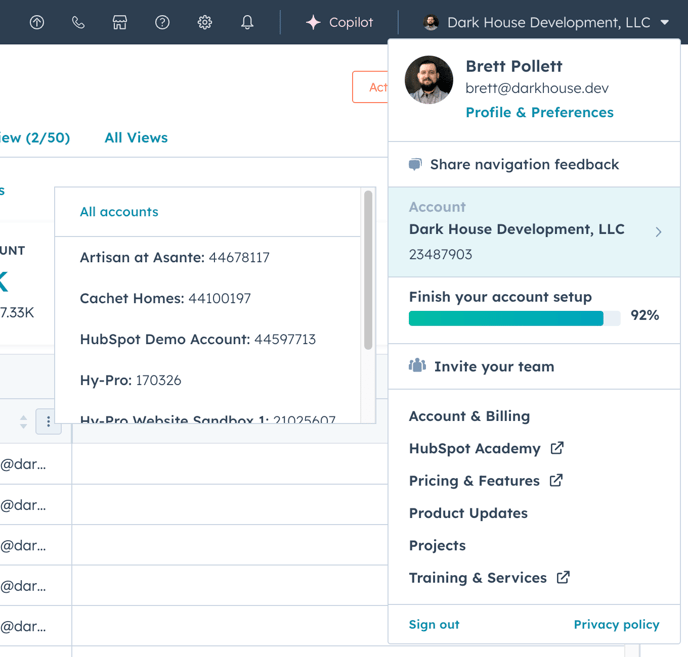
- While currently logged into Hubspot you should see the name of the current client you are accessing in the very top right corner of the screen. Click that dropdown to reveal the user admin menu.
- Scroll down to the Account section right below your profile info to reveal a 2nd menu to the left showing other available client accounts. This is just the most recently visited accounts and may not show all accounts you have access to. If the account you need to go to next is in this list then click on it to switch to that account.
- If the client you need is not in the list then click the All Clients link at the top of the side menu, which will take you back to the first screen you saw when you logged in featuring all of the available accounts to select.
3. Logging Out:
- Instructions:
- When it comes time to log out of one account to switch to the other you can use the same user admin menu in the top right corner of the screen and select the Sign out link at the bottom left of the main dropdown.
- This will bring you back to the login screen where you will need to click the Change button next to the email address to switch to the other email address/username.
- It may also be helpful to just have 2 different browser profile windows open so one can always be logged into one account and the other can always be logged into the other Hubspot account, so you never have to worry about signing out and switching users.